
In this story
10 Powerful Tools to Create Professional Videos
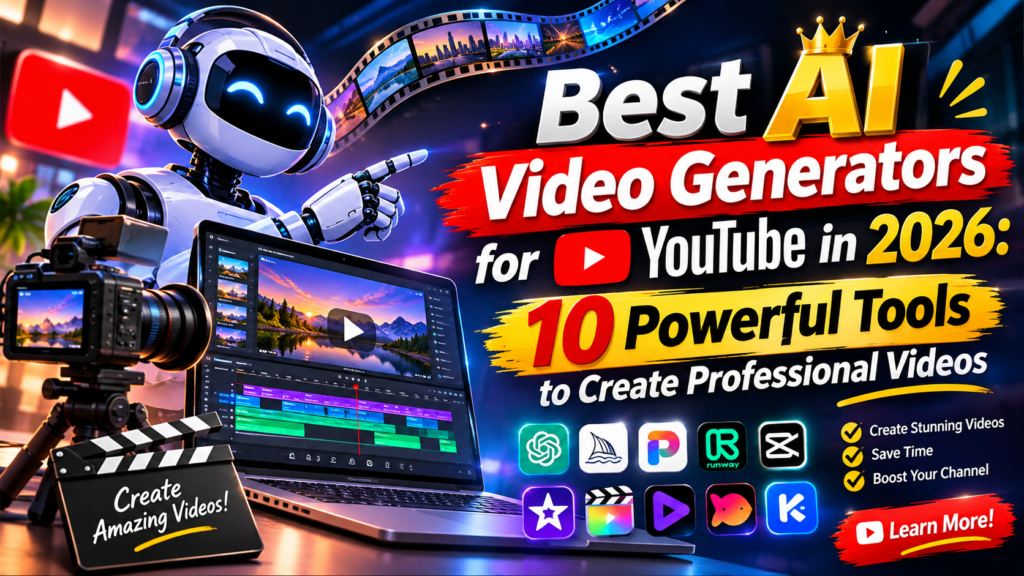
Best AI Video Generators for YouTube in 2026: 10 Powerful Tools to Create Professional Videos
Published: November 6, 2026
Creating professional YouTube videos no longer requires an expensive camera, a production team, or years of video-editing experience. Today, artificial intelligence is transforming video production by helping creators turn text prompts, images, scripts, and creative ideas into engaging visual content.
In 2026, AI video generators are becoming valuable tools for YouTubers, content creators, digital marketers, educators, and businesses. For example, these platforms can help produce cinematic scenes, animated stories, product demonstrations, educational videos, realistic AI presenters, and short-form content for YouTube Shorts.
However, choosing the right platform can be challenging because every tool offers different capabilities. Some specialize in realistic video generation, while others focus on AI avatars, automatic editing, text-to-video creation, or transforming existing footage into shorter clips.
So, which are the best AI video generators for YouTube in 2026?
In this guide, we’ll explore 10 useful AI video tools, compare their features, explain their strengths and limitations, and show you how to choose the right platform for your channel.
Whether you’re building a faceless YouTube channel, creating cinematic videos, producing educational content, or improving existing footage, this guide will help you find a suitable AI solution.
1. What Is an AI Video Generator?
An AI video generator is a digital tool that uses artificial intelligence to create, edit, or transform video content.
Depending on the platform, users can provide a written description, upload an image, enter a script, or submit existing footage. The AI system then processes these inputs to generate video scenes, animations, voiceovers, captions, and other visual elements.
For example, imagine you want to create a YouTube video about the future of artificial intelligence. Instead of filming every scene yourself, you could use several AI tools to build the production.
Here is one possible workflow:
- Write an original video script with an AI writing assistant.
- Generate cinematic technology scenes using an AI video generator.
- Create narration with a voice-generation tool.
- Combine the scenes in a video editor.
- Add subtitles, background music, and transitions.
- Export the finished video for YouTube.
This workflow can make video production more accessible. However, the final quality still depends on careful planning, editing, and human creativity.
Main Types of AI Video Generators
Before comparing the tools, it helps to understand the different categories.
Text-to-video generators: These platforms turn written prompts into video scenes. They are useful for storytelling, cinematic footage, creative projects, and visual explanations.
Image-to-video generators: These tools animate existing images and illustrations. As a result, creators can add movement to product photographs, artwork, and other still images.
AI avatar generators: These platforms create videos featuring virtual presenters who deliver written scripts. They are particularly useful for educational channels, tutorials, business communication, and training.
Script-to-video platforms: These services convert written scripts or articles into video drafts using visuals, narration, captions, and templates.
AI video editors: These tools improve existing footage, remove unwanted sections, generate subtitles, adjust audio, and simplify editing.
Not every platform performs all these tasks. Therefore, understanding the differences will help you avoid choosing a tool that does not fit your content strategy.
2. Best AI Video Generators for YouTube in 2026
Each platform has a different purpose, so the best choice depends on the type of content you want to create. Some tools are designed for cinematic scenes, whereas others are better suited to virtual presenters or automated editing.
The following 10 platforms are worth exploring because they offer different approaches to AI-assisted video production.
1. Google Veo 3.1 and Flow – Best for Cinematic AI Video Creation
Official websites:
Google Veo 3.1 is an interesting option for creators who want realistic, cinematic AI-generated video scenes.
Developed by Google DeepMind, Veo supports text-to-video and image-based video generation. Its capabilities include generating visual scenes with native audio, creating transitions between images, and providing greater control over the appearance and movement of generated content.
Additionally, Google Flow provides a filmmaking-oriented environment for creating and organizing cinematic scenes using Google’s generative video models.
Main features:
- Text-to-video generation.
- Image-to-video creation.
- AI-generated sound effects and dialogue.
- Cinematic scene creation.
- First-frame and last-frame controls.
- Visual consistency and creative controls.
- Support for high-resolution video workflows.
Why YouTube creators may like it:
Imagine creating a documentary about space exploration. You could generate cinematic scenes of planets, spacecraft, futuristic laboratories, and other visual elements to support your original narration.
Similarly, generated footage can work as B-roll, making educational videos more visually engaging.
Advantages:
- Excellent creative possibilities for cinematic scenes.
- Native audio-generation capabilities.
- Useful for storytelling and visual experimentation.
- Strong option for image-based video workflows.
Limitations:
- Generated clips are not automatically complete YouTube videos.
- Access and generation limits depend on the available Google plan and model.
- Complex scenes may require multiple generations and additional editing.
Best for: Documentary creators, educational channels, cinematic storytelling, and creative YouTubers.
Learn more: Google DeepMind – Veo
2. Runway – Best for Professional AI Video Generation
Official website: https://runwayml.com/
Runway is a creative platform designed for AI-assisted video and image generation.
Its Gen-4.5 model supports text-to-video and image-to-video generation. Consequently, creators can describe a scene or upload an image and transform it into a moving visual.
Runway is particularly interesting for creators who want greater control over camera movements, scene composition, and visual storytelling.
Main features:
- Text-to-video generation.
- Image-to-video generation.
- Advanced visual generation models.
- Creative camera movements.
- Video editing and AI-powered creative tools.
- Workflows for organizing and developing video projects.
Example YouTube use:
A travel channel could use Runway to generate cinematic B-roll showing futuristic city scenes, dramatic landscapes, or artistic transitions between locations.
Meanwhile, a technology channel could create visual explanations of concepts that are difficult to film in real life.
Advantages:
- Powerful creative controls.
- Useful for cinematic B-roll.
- Suitable for experienced creators and creative professionals.
- Supports different video aspect ratios.
Limitations:
- Generated clips may be short.
- Building a complete long-form video requires additional editing.
- Credit consumption and subscription limits should be considered.
Best for: Cinematic videos, creative storytelling, visual effects, and professional content production.
Learn more: Runway Help Center
3. HeyGen – Best for Realistic AI Avatar Videos
Official website: https://www.heygen.com/
HeyGen focuses on creating videos featuring realistic AI presenters and digital avatars.
Instead of filming yourself every time you want to publish a video, you can prepare a script, select an avatar, and generate a presentation-style video.
This can be useful for creators who want to publish educational content, business explainers, tutorials, or videos in multiple languages.
Main features:
- AI avatar creation.
- Script-to-video generation.
- AI voice generation.
- Lip synchronization.
- Video translation.
- Personalized digital presenters.
- Video creation for different formats.
Example YouTube use:
Imagine you operate a technology education channel. You can prepare an original script explaining five new AI tools, choose a virtual presenter, and generate a video without recording a traditional talking-head presentation.
Afterward, you can add original screenshots, demonstrations, and visual examples to make the video more useful.
Advantages:
- Useful for presenter-style videos.
- Supports multilingual content workflows.
- Can simplify repetitive educational video production.
- Helpful for business and training content.
Limitations:
- AI presenters may not suit every channel or audience.
- Advanced features and usage limits depend on the subscription.
- Generated speech and pronunciation should be reviewed.
Best for: Educational channels, business creators, tutorials, and multilingual YouTube content.
Learn more: HeyGen
4. Synthesia – Best for Educational and Professional Videos
Official website: https://www.synthesia.io/
Synthesia is an AI video platform designed primarily for videos featuring virtual presenters.
It is particularly useful for organizations, educators, trainers, and content creators who want to explain information through structured presentations.
For example, you can prepare a script, select an AI presenter, organize scenes, and generate a video without recording every presentation yourself.
Main features:
- AI avatars.
- Script-based video creation.
- Professional presentation templates.
- Multilingual voice options.
- Scene-based video editing.
- Business and educational video workflows.
Example YouTube use:
A channel focused on digital education could create a series explaining cybersecurity basics, artificial intelligence concepts, or productivity techniques using an AI presenter and supporting graphics.
In addition, the same production workflow can help create consistent videos for a series of related lessons.
Advantages:
- Professional presentation style.
- Useful for educational content.
- Helps organize information into scenes.
- Suitable for repeatable training workflows.
Limitations:
- More focused on presenter-led videos than cinematic storytelling.
- Some features depend on paid subscriptions.
- Human review is important to ensure that the presentation feels natural.
Best for: Educational channels, tutorials, corporate training, and professional explainers.
Learn more: Synthesia
5. InVideo AI – Best for Turning Scripts into YouTube Videos
Official website: https://invideo.io/
InVideo AI is designed to simplify video creation by turning written instructions and scripts into video drafts.
It can help creators combine narration, visual assets, subtitles, and editing elements into a structured video. Therefore, it is particularly interesting for beginners who want to produce videos without learning complicated editing software immediately.
Main features:
- Text-to-video workflows.
- Script-based video creation.
- AI voiceovers.
- Stock footage and media integration.
- Automatic subtitles.
- Video editing and scene adjustments.
- Support for different social media formats.
Example YouTube use:
Suppose you want to publish a video titled “10 AI Tools That Can Improve Your Productivity.”
You can prepare your script, provide it to InVideo AI, and use the generated draft as a starting point. Then, replace unsuitable visuals, improve the narration, add demonstrations, and edit the final result.
Advantages:
- Beginner-friendly workflow.
- Useful for producing video drafts quickly.
- Helps combine scripts, footage, and narration.
- Useful for short-form and informational content.
Limitations:
- Automatic footage selection may not always match the script.
- Some results can look like generic stock-footage presentations.
- Free-plan exports and advanced features may have restrictions.
Best for: Beginners, informational channels, marketing videos, and YouTube Shorts.
Learn more: InVideo AI
6. Kling AI – Best for Creative and Realistic AI Scenes
Official website: https://klingai.com/
Kling AI is a generative video platform that allows creators to produce moving scenes from written prompts and images.
It is particularly interesting for visual storytelling, creative experiments, and scenes that would be difficult or expensive to film.
Depending on the available model and plan, Kling offers features for controlling motion, working with reference images, and developing more consistent visual scenes.
Main features:
- Text-to-video generation.
- Image-to-video generation.
- Creative motion generation.
- Visual reference workflows.
- Character and scene creation.
- Different generation models and settings.
Example YouTube use:
A creator making a science-fiction storytelling channel could generate futuristic cities, imaginative environments, and fictional scenes to support an original narrative.
Furthermore, image-based animation can help bring illustrations and concept artwork to life.
Advantages:
- Flexible creative generation.
- Useful for imaginative visual storytelling.
- Supports image-based animation.
- Interesting option for artistic video projects.
Limitations:
- Results can vary between generations.
- Complex movements may need repeated adjustments.
- Generation credits and features depend on the plan.
Best for: Fiction channels, creative storytelling, animations, and cinematic visuals.
Learn more: Kling AI
7. Pika – Best for Creative Short Videos and Visual Effects
Official website: https://pika.art/
Pika is an AI-powered creative platform for generating and transforming video content.
It is especially interesting for creators who want to experiment with unusual visual effects, animated scenes, and short creative clips.
Rather than replacing every part of a traditional editing workflow, Pika can help generate distinctive visual moments that creators can incorporate into larger projects.
Main features:
- Text-to-video generation.
- Image-to-video animation.
- Creative video effects.
- Visual transformations.
- Short-form video experiments.
- AI-powered creative editing features.
Example YouTube use:
A creator could develop short animated scenes, visual transitions, imaginative product concepts, or eye-catching clips for YouTube Shorts.
Advantages:
- Accessible creative workflows.
- Useful for short visual experiments.
- Interesting effects and animation possibilities.
- Suitable for creative social content.
Limitations:
- Not a complete long-form YouTube production system.
- Complex storytelling may require another editor.
- Available features and usage limits can change.
Best for: YouTube Shorts, creative experiments, animated visuals, and social media content.
Learn more: Pika
8. CapCut – Best for Editing YouTube Videos and Shorts
Official website: https://www.capcut.com/
CapCut is a popular video-editing platform with AI-assisted features that can help creators prepare videos for YouTube.
Unlike dedicated text-to-video generators, CapCut is particularly useful for editing and finishing footage.
For instance, you can combine generated AI scenes, recorded video, images, voiceovers, music, and subtitles into a finished project.
Main features:
- Video editing.
- Automatic captions.
- AI-assisted editing features.
- Background removal.
- Text and visual effects.
- Transitions and templates.
- Different aspect ratios and export options.
Example YouTube use:
You generate several cinematic scenes using Google Veo or Runway, then import them into CapCut to arrange the clips, add narration, insert captions, and prepare the final YouTube video.
Advantages:
- Useful editing workflow.
- Suitable for beginners.
- Good for Shorts and long-form video projects.
- Helps combine footage from different AI tools.
Limitations:
- Some advanced features require payment.
- Availability can vary by country and device.
- Templates should be customized to avoid repetitive content.
Best for: Beginners, YouTube Shorts creators, and video editors.
Learn more: CapCut
9. Descript – Best for Editing Videos Through Text
Official website: https://www.descript.com/
Descript offers a different approach to video editing. Instead of relying entirely on a traditional editing timeline, creators can edit media through a transcript-based workflow.
This is particularly useful for educational videos, interviews, podcasts, tutorials, and commentary channels.
Main features:
- Text-based video editing.
- Automatic transcription.
- Subtitle generation.
- Audio editing.
- Screen recording.
- AI-assisted audio improvements.
- Video content organization.
Example YouTube use:
Imagine recording a 20-minute tutorial. Descript can transcribe the recording, allowing you to edit parts of the video by working with the text. As a result, you can remove unnecessary sections, improve the structure, and prepare captions.
Advantages:
- Helpful for dialogue-heavy videos.
- Simplifies editing long recordings.
- Useful for interviews and podcasts.
- Combines audio and video workflows.
Limitations:
- Not primarily a cinematic text-to-video generator.
- Transcriptions should be checked.
- Advanced features may require a subscription.
Best for: Podcasters, educators, interview channels, and commentary creators.
Learn more: Descript
10. Pictory – Best for Turning Articles and Scripts into Videos
Official website: https://pictory.ai/
Pictory focuses on converting written content into video presentations.
It can help creators transform scripts, articles, and other text-based material into videos using visual assets, narration, and captions.
Consequently, it is particularly useful for educational and informational YouTube channels.
Main features:
- Script-to-video creation.
- Article-to-video workflows.
- AI voiceovers.
- Automatic captions.
- Visual media selection.
- Video editing and scene organization.
Example YouTube use:
A technology blogger could transform an original article about cybersecurity into a narrated educational video with relevant visuals and captions.
However, simply reading an article over generic stock footage may not provide enough original value. Add your own explanations, examples, analysis, and demonstrations.
Advantages:
- Useful for repurposing original written content.
- Helps structure informational videos.
- Supports narration and captions.
- Beginner-friendly production approach.
Limitations:
- Automated visuals may need replacement.
- More suitable for informational content than advanced cinematic production.
- Subscription features and usage limits should be checked.
Best for: Bloggers, educational channels, informational creators, and content repurposing.
Learn more: Pictory
3. Comparison: Which AI Video Generator Is Best for YouTube?
The tools above serve different creative purposes. Therefore, comparing their main strengths can make your decision easier.
| Tool | Main strength | Best YouTube use |
|---|---|---|
| Google Veo 3.1 / Flow | Cinematic video generation | Documentaries and storytelling |
| Runway | Creative video generation | Cinematic B-roll |
| HeyGen | Realistic AI avatars | Presenter videos |
| Synthesia | Professional presentations | Educational videos |
| InVideo AI | Script-to-video workflows | Informational videos |
| Kling AI | Creative scene generation | Fiction and storytelling |
| Pika | Visual effects and animation | YouTube Shorts |
| CapCut | Video editing | Shorts and long-form editing |
| Descript | Text-based editing | Podcasts and tutorials |
| Pictory | Article-to-video workflows | Educational content |
There is no single winner for every creator. For instance, cinematic creators may prefer Google Veo or Runway. In contrast, educators who want virtual presenters may find HeyGen or Synthesia more suitable.
Meanwhile, beginners who need help assembling scripts and footage can explore InVideo AI or Pictory.
Ultimately, consider your content format, editing experience, available budget, and production goals before choosing a platform.
4. Best AI Video Generators for Different YouTube Channels
Your channel’s subject should influence your choice of AI video generator. A documentary creator, for example, needs different features from someone producing daily YouTube Shorts.
Best for Faceless YouTube Channels
If you want to create a faceless channel, consider combining these tools:
- InVideo AI: For script-based video drafts.
- Google Veo or Runway: For original visual scenes.
- Pictory: For turning original articles into video drafts.
- CapCut: For editing and subtitles.
A faceless channel does not have to be a low-quality slideshow. Instead, original narration, research, visual storytelling, and useful explanations can make it engaging.
Best for YouTube Shorts
For short-form videos, consider:
- CapCut: For editing and captions.
- Pika: For creative video effects.
- Kling AI: For generated scenes.
- InVideo AI: For fast video drafts.
Additionally, use the vertical 9:16 format when preparing content specifically for Shorts. This helps your video fit the viewing experience on mobile devices.
Best for Cinematic YouTube Videos
For creators who want cinematic visual quality, consider:
- Google Veo 3.1: For generated scenes and audio.
- Runway: For controlled text-to-video and image-to-video generation.
- Kling AI: For creative visual scenes.
These tools are particularly useful for B-roll, fictional storytelling, and visual sequences. However, you may still need a separate editor to assemble the complete video.
Best for Educational YouTube Videos
For tutorials, explanations, and lessons, explore:
- HeyGen: For AI presenters.
- Synthesia: For structured educational presentations.
- Descript: For editing recorded lessons.
- CapCut: For final editing.
In this category, clear narration and accurate information are just as important as attractive visuals.
Best for Business and Product Videos
For promotional videos and product demonstrations, consider:
- HeyGen: For virtual presenters.
- Google Veo: For creative product scenes.
- Runway: For visual effects.
- InVideo AI: For promotional video drafts.
For product content, always check that generated visuals represent the actual product accurately. Misleading demonstrations can damage audience trust.
5. How to Create a YouTube Video Using AI: Step-by-Step Guide
Creating a video with AI becomes easier when you follow a clear production process. Instead of relying on one platform for everything, you can combine several tools according to their strengths.
Here is an example of how to produce a technology video using AI.
Step 1: Choose a Topic
Start with a topic that your target audience wants to understand.
Example: “5 Artificial Intelligence Tools That Are Changing the Future of Work.”
Before creating the video, research the subject and collect reliable information. In addition, consider what viewers will learn from watching it.
Step 2: Write an Original Script
Use a writing assistant such as ChatGPT to organize your ideas and develop a first draft.
Your script should include:
- An interesting introduction.
- A clear explanation of the topic.
- Useful examples.
- Main discussion points.
- A conclusion.
- A natural call to action.
However, don’t publish AI-generated text without reviewing it. Always fact-check important claims, improve the wording, and add your own perspective.
Step 3: Generate Visual Scenes
Choose an AI video generator based on your needs.
For example:
- Use Veo for cinematic scenes.
- Use Runway for creative B-roll.
- Use HeyGen for a virtual presenter.
- Use Pika for short animated sequences.
Rather than expecting one prompt to produce a complete professional video, generate individual scenes and organize them into a coherent story.
Step 4: Create the Voiceover
You can record your own narration or use a suitable AI voice-generation platform.
Useful resources include:
After generating the narration, check pronunciation, pacing, and audio quality. A natural voice can make an educational video much easier to follow.
Step 5: Edit the Video
Import your scenes and narration into CapCut or Descript.
Then follow these steps:
- Remove unnecessary footage.
- Add subtitles.
- Adjust sound levels.
- Add suitable transitions.
- Include relevant graphics.
- Check the visual sequence.
- Make sure the video has a clear beginning, middle, and ending.
Additionally, watch the complete video before exporting it. This helps you identify visual errors, awkward transitions, and audio problems.
Step 6: Create a YouTube Thumbnail
A strong thumbnail helps viewers understand what the video is about.
Useful design tools include:
Use readable text, clear visual elements, and an image that accurately represents the video.
For more inspiration about digital design and creative tools, explore our guide: What Is Digital Design? A Modern Guide for Creators.
Step 7: Upload and Optimize
Before publishing, prepare:
- An accurate video title.
- A helpful description.
- Relevant keywords.
- A custom thumbnail.
- Chapters when useful.
- Captions.
- Appropriate AI disclosure when required.
Finally, review YouTube’s official creator resources: YouTube Creators.
6. Five Powerful AI Video Prompts for YouTube Creators
The quality of generated footage depends partly on how clearly you describe the scene.
A useful prompt explains the main subject, environment, movement, camera style, lighting, and visual mood. However, writing a longer prompt does not automatically guarantee a better result.
Here are five prompts you can customize for your own channel.
Prompt 1: Cinematic Technology Scene
“Create a cinematic 16:9 video scene showing a futuristic technology laboratory at night. Large digital screens display artificial intelligence visualizations, blue and purple lights illuminate the room, and a slow camera movement moves toward the central workstation. Use realistic lighting, detailed environments, smooth movement, and a professional documentary aesthetic. No logos, no random text, and no distracting visual elements.”
Prompt 2: Futuristic City
“Generate a realistic cinematic video of a futuristic American city at sunset. Show modern skyscrapers, autonomous vehicles moving through the streets, pedestrians walking naturally, and warm reflections on glass buildings. Use a wide cinematic camera movement, realistic physics, detailed architecture, and natural environmental lighting.”
Prompt 3: Educational Explainer
“Create a professional educational video scene explaining artificial intelligence. Show a modern digital workspace with visual representations of data processing, neural networks, and connected devices. Use clean compositions, smooth camera movement, professional lighting, and a modern technology-documentary style. Avoid displaying inaccurate written information.”
Prompt 4: Product Advertisement
“Create a premium commercial-style video showing [product name]. Start with a close-up of the product, then use a smooth rotating camera movement to reveal its design. Add realistic lighting, detailed textures, elegant shadows, and a clean background. Preserve the product’s original shape, colors, and design.”
Prompt 5: YouTube Shorts Visual
“Create an engaging vertical 9:16 video showing a futuristic artificial intelligence concept. Begin with a visually striking opening shot, then transition smoothly into a sequence of detailed digital environments. Use energetic but controlled camera movements, high-quality lighting, and clear visual storytelling. Keep the main subject centered and leave enough space for captions.”
Important prompting tip: For image-to-video generation, describe the movement you want rather than repeating every detail already visible in the uploaded image. This helps direct the model’s attention toward animation and motion.
7. How Much Do AI Video Generators Cost?
The cost of AI video production varies considerably between platforms. Some offer free access with limited credits, while others require subscriptions or additional generation credits.
Before choosing a paid plan, compare the features that matter most to your workflow.
Consider these points:
- Monthly generation limits: How many clips can you create?
- Video duration: How long can each generated clip be?
- Export resolution: Does the plan support your preferred quality?
- Watermarks: Are exported videos free of platform branding?
- Commercial-use permissions: Can you use the content in monetized projects?
- Voice and audio features: Are narration and sound generation included?
- Available models: Which generation models can you access?
- Storage and downloads: How long can you keep your projects?
Check the latest pricing directly on the official websites:
- Google Veo and Flow
- Runway Pricing
- HeyGen Pricing
- Synthesia Pricing
- InVideo Pricing
- Kling AI
- Pika
- CapCut
- Descript Pricing
- Pictory Pricing
Prices, free credits, and feature availability can change. Furthermore, some platforms offer different plans depending on the country and billing period.
Our advice: Start with a free option or trial where available. Create a few test videos before paying for a subscription. Then compare the actual export quality and generation limits rather than choosing a tool based only on advertisements.
8. Can You Monetize AI-Generated Videos on YouTube?
Yes, AI-assisted videos can be eligible for YouTube monetization. However, using artificial intelligence does not automatically make a channel eligible.
The important consideration is whether the finished content provides original, authentic, and valuable information or entertainment.
For example, simply generating hundreds of similar videos using the same template, narration, and visuals may create monetization problems. By contrast, AI can support original storytelling, educational explanations, commentary, research, and creative production.
YouTube’s monetization policies explain that repetitive, mass-produced, or minimally transformed content may be ineligible. Therefore, creators should focus on making each video genuinely useful and distinctive.
Read the official policy: YouTube Channel Monetization Policies.
When Should You Disclose AI-Generated Content?
YouTube requires disclosure when realistic content has been meaningfully altered or synthetically generated in ways that could mislead viewers about real people, places, or events.
Examples include:
- A realistic AI-generated scene showing an event that never happened.
- Altered footage of a real location.
- Making a real person appear to say something they never said.
- Realistic synthetic depictions of actual events.
On the other hand, ordinary production assistance, such as generating an outline, improving a script, creating captions, or using certain editing effects, does not generally require the same disclosure.
YouTube announced updated AI labels in May 2026. These changes make disclosures more visible to viewers, including on Shorts and long-form videos. Importantly, YouTube states that an AI disclosure label alone does not affect a video’s eligibility for monetization or its recommendations.
Read the official guidance:
- YouTube AI Disclosure Requirements
- YouTube’s Updated AI Labels for Viewers and Creators
- YouTube Partner Program
Creators should review these policies before publishing and monetizing AI-assisted videos.
9. Common Mistakes to Avoid When Creating YouTube Videos with AI
Although AI tools can save production time, they do not eliminate the need for quality control.
Here are some common mistakes worth avoiding.
1. Publishing videos without reviewing them
AI-generated footage may contain distorted objects, unnatural movements, inconsistent characters, or visual errors. Therefore, always review the final video before publishing.
2. Using random footage that does not match the narration
Every scene should support the subject being discussed. Otherwise, viewers may struggle to understand the connection between the visuals and the information.
3. Ignoring copyright and licensing
Check the licensing terms for generated footage, music, sound effects, stock media, and uploaded reference images. Having access to a tool does not automatically grant rights to every asset used with it.
4. Creating repetitive videos
Do not publish large numbers of nearly identical videos simply to increase upload frequency. Instead, give every video a distinct subject, structure, and useful contribution.
5. Forgetting audio quality
Poor narration, distracting background music, and inconsistent sound levels can reduce the quality of an otherwise excellent video. As a result, audio should receive as much attention as the visuals.
6. Depending entirely on automation
AI can help with production, but original research, creative direction, fact-checking, editing, and storytelling remain important. Ultimately, your creative decisions are what give a channel its identity.
10. Frequently Asked Questions About AI Video Generators for YouTube
What is the best AI video generator for YouTube in 2026?
There is no single best platform for every creator. Google Veo and Runway are interesting options for cinematic scenes, HeyGen and Synthesia are useful for AI presenters, and InVideo AI can help turn scripts into video drafts.
What is the best free AI video generator for YouTube?
Several platforms offer free access, trials, or limited credits. Availability and restrictions vary. CapCut is a useful starting point for editing, while some generative platforms provide limited free video creation.
Always check the current free-plan conditions before starting a project.
Can I create a complete YouTube video using AI?
Yes. AI-assisted workflows can help produce scripts, visuals, voiceovers, subtitles, and edits. However, the final video may still need human review and editing to ensure quality and originality.
Can I create a faceless YouTube channel with AI?
Yes. You can create a faceless channel using original narration, generated visuals, screen recordings, animations, and other visual assets.
Nevertheless, the important thing is to provide useful and original content rather than publishing repetitive automated videos.
Are AI-generated YouTube videos eligible for monetization?
They can be eligible if they meet YouTube’s monetization requirements. AI-generated content must still provide original value and comply with copyright, disclosure, and other platform policies.
Which AI tool is best for YouTube Shorts?
CapCut, Pika, Kling, and InVideo AI are worth exploring for different Shorts workflows. The best choice depends on whether you need editing, visual generation, effects, or automatic video assembly.
Can AI generate realistic video and sound together?
Yes. Google’s Veo 3.1 supports native audio generation alongside video generation. However, generated speech and sound should be reviewed for quality and accuracy.
Do I need expensive equipment to create AI videos?
Not necessarily. You can begin with a computer or compatible mobile device, internet access, and a suitable AI video platform. Better equipment can improve your workflow, but it is not always necessary for getting started.
Conclusion: Which AI Video Generator Should You Choose in 2026?
AI video generation is creating new opportunities for YouTube creators. From cinematic storytelling and realistic AI presenters to automated editing and educational production, these platforms offer many ways to develop digital content.
If cinematic scenes are your priority, explore Google Veo and Runway. Alternatively, consider HeyGen or Synthesia for virtual presenters. For script-based video drafts, InVideo AI and Pictory are worth investigating. Meanwhile, CapCut and Descript can help you edit and finish your projects.
Ultimately, the right platform is the one that supports your channel’s goals, creative style, and budget.
Our final recommendation: Do not choose an AI video generator simply because it is popular. Test different tools, review their output carefully, and build a production workflow that combines AI technology with your own creativity.
The future of YouTube is not just about generating more videos. It is about creating better stories, sharing useful information, and giving viewers a reason to return.
At Zawana Blog, we explore artificial intelligence, digital creativity, and modern technology to help creators discover the tools and ideas shaping the future of digital content. Explore more guides on Zawana Blog.